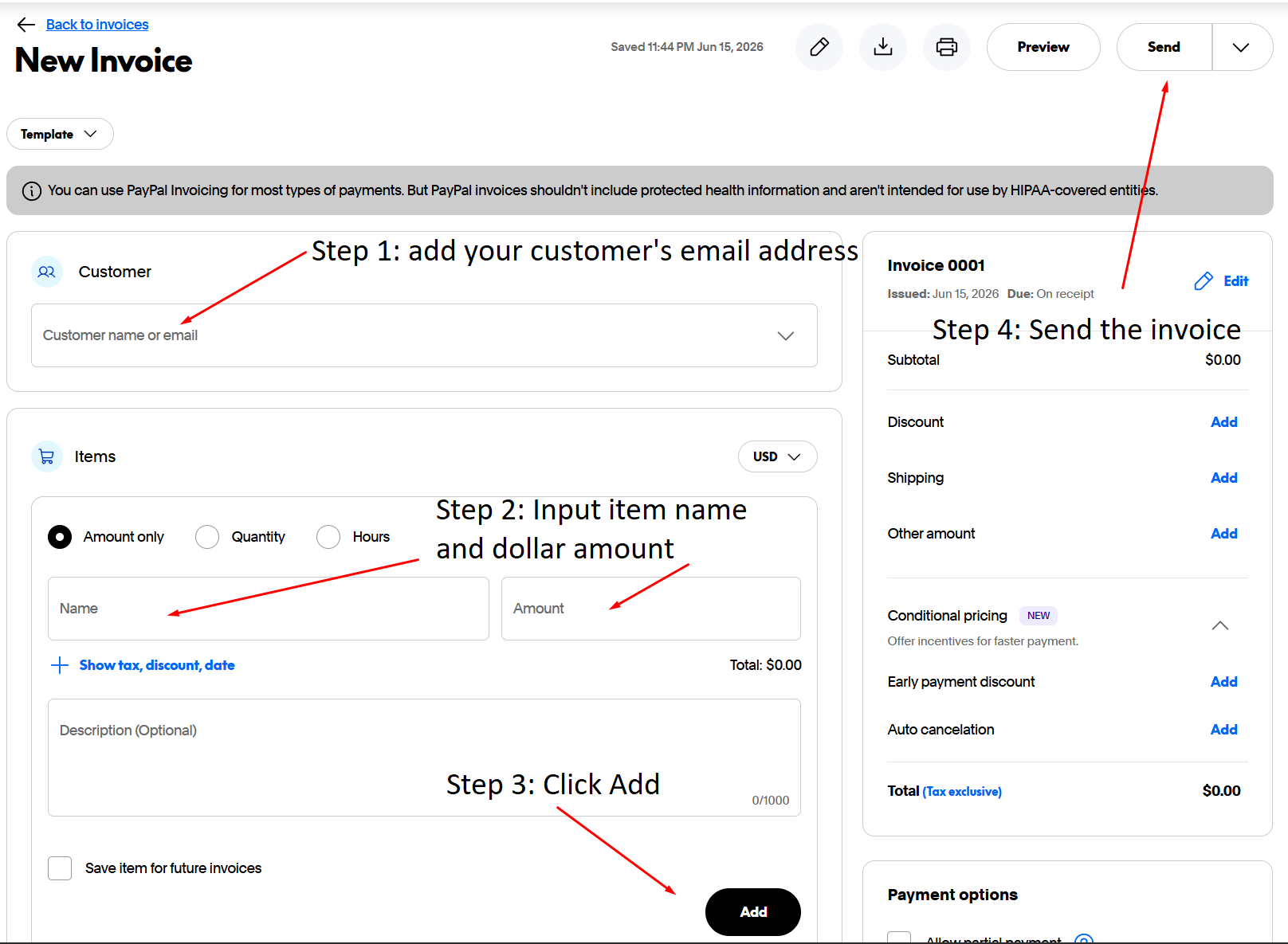
TLDR: Navigate to PayPal: New Invoice, input your customer’s email address, add an item name and amount, then click “Add.” Finally, click “Send” at the top right of the page.
How to Send an Invoice on Mobile
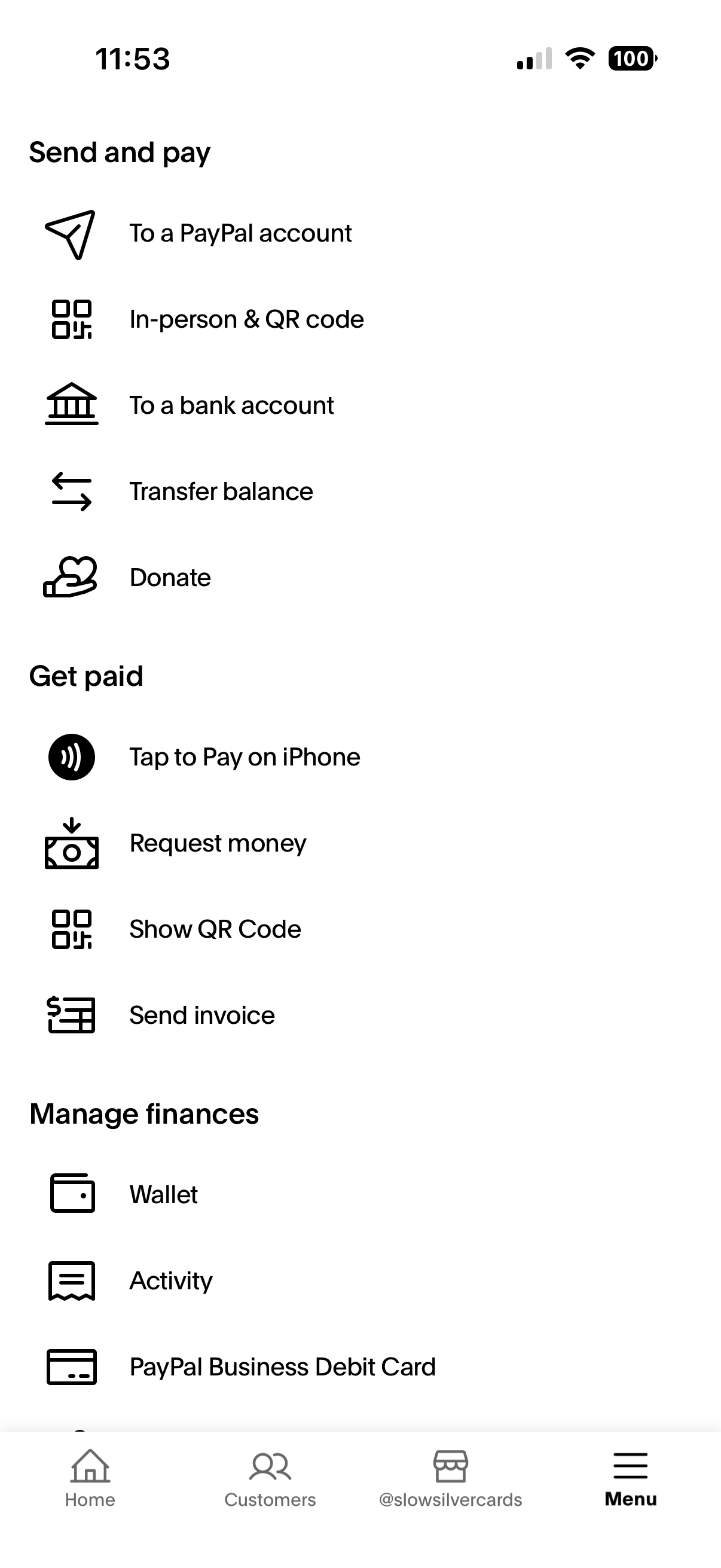
Open your PayPal app, then find the hamburger button (☰) called “Menu” and under the “Get paid” section find “Send invoice” (if this is not available, use “Request money”).
Steps on Mobile
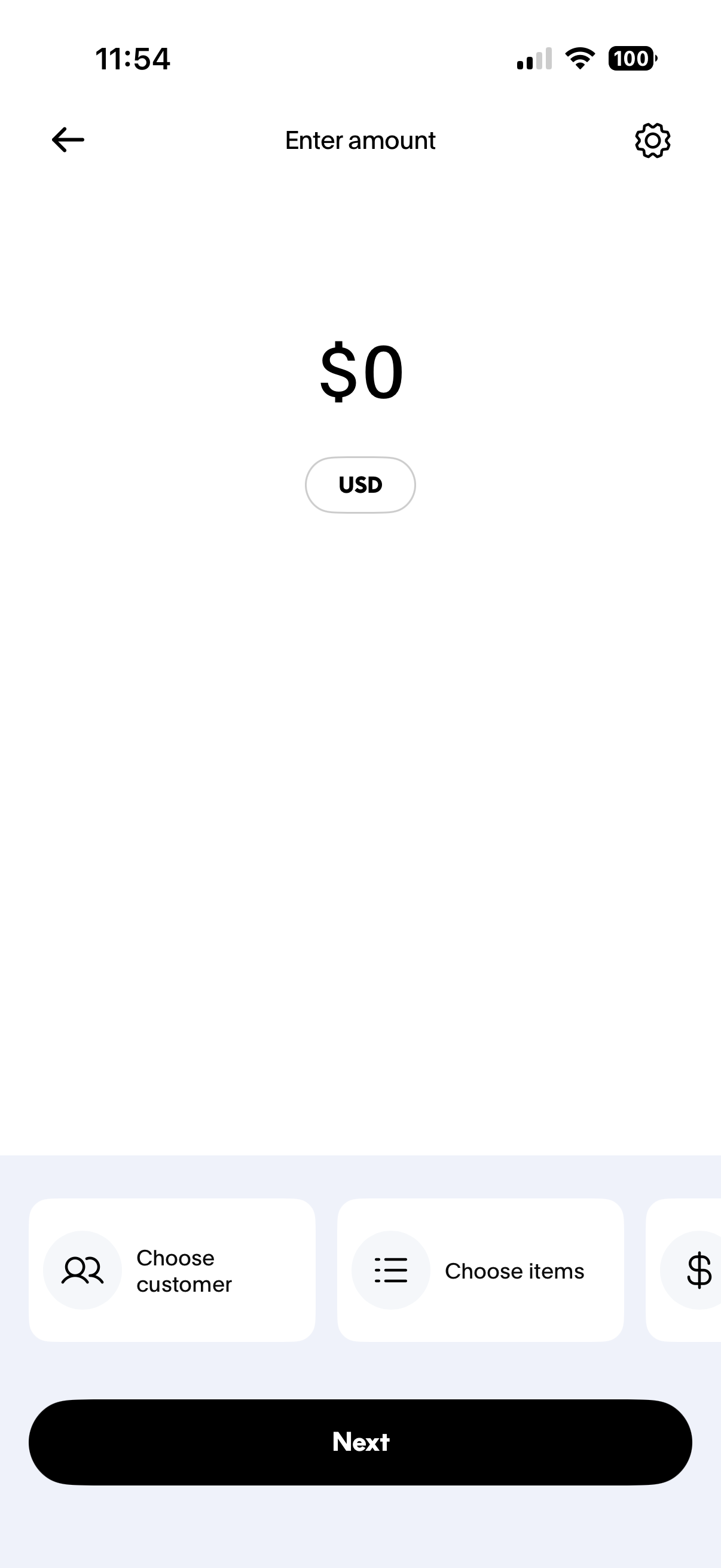
- Tap on the section that currently says $0 and enter the agreed-upon dollar amount
- Tap “Choose customer” then add your customer’s PayPal email address
- Optionally, tap “Choose items” and create a descriptive item name
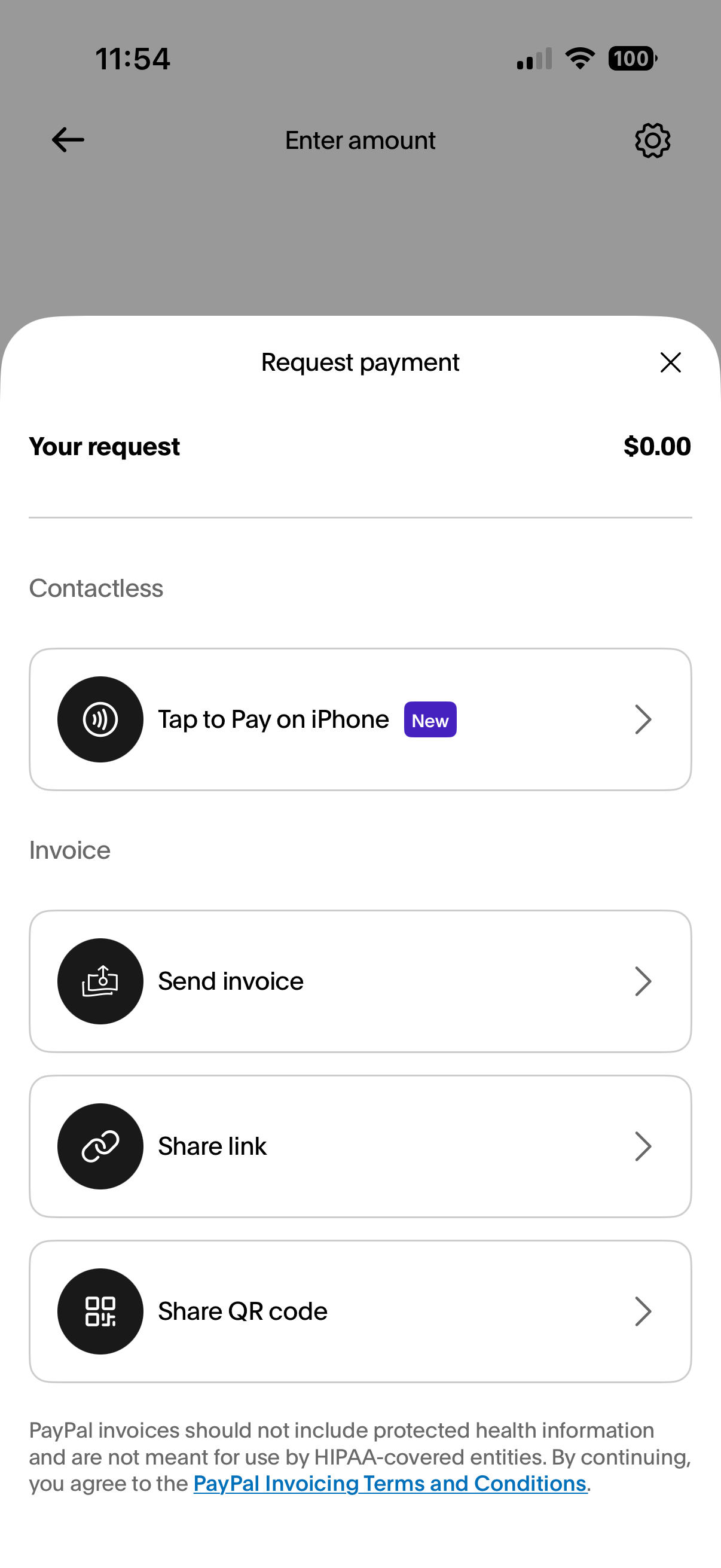
- Tap “Next” then “Send invoice”
Tap on each section below to expand images.
Step 1: Find Send invoice
Step 2: Fill out the invoice
Step 3: Send the invoice
How to Send an Invoice on Desktop
Depending on your account type, the invoicing section may be in a different area. It may be under a section or button named “Create,” a dropdown named “Pay & Get Paid,” or it may simply be referred to as a “money request.” You can always navigate to the invoice creation section using the following link: PayPal: New Invoice.
If you are still unable to find the invoice feature, refer to the following article:
Steps on Desktop
- In the customer field, add your customer’s PayPal email address
- Under the items section, add a name for your item and the agreed-upon dollar amount
- At the bottom of the items section, click the “Add” button
- Verify all of the information in the invoice is correct, then click “Send” near the top right of the page